
A brief summary of the Evrideo Scheduler
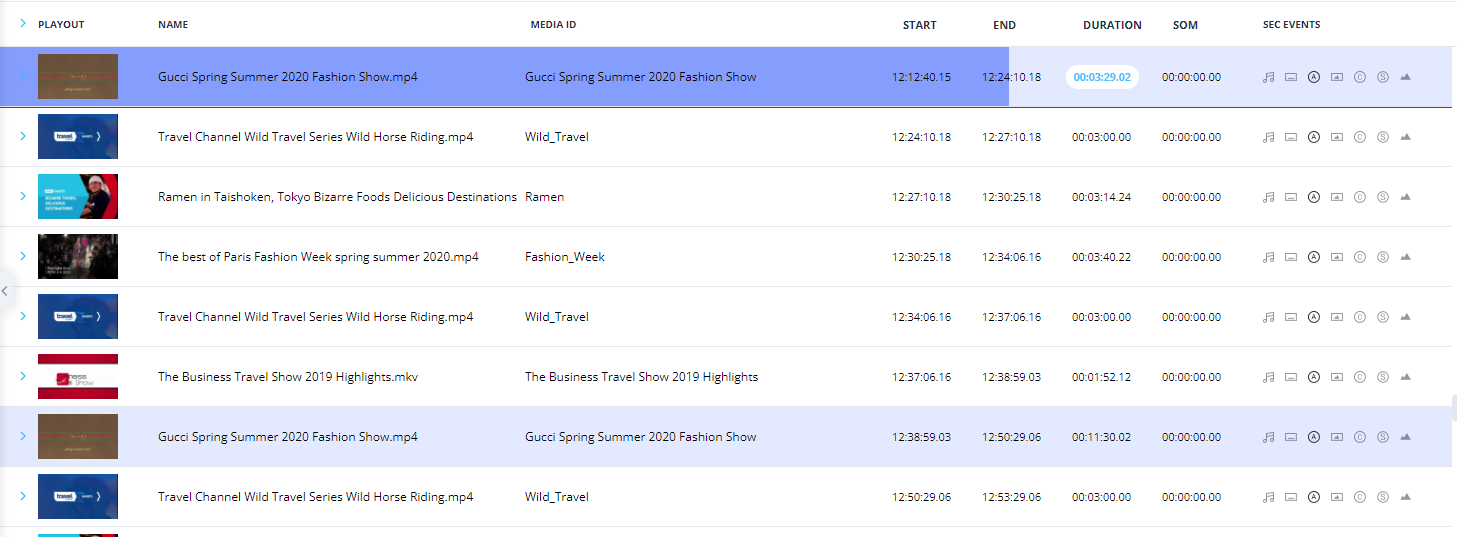
The scheduler default view is a list of the playout; the red line in the list indicates what is playing now.

You can see the playing and remaining time on the top panel.

The blue bar on the item indicates the progress of this item.

to move to the item, which is playing right Now, click on the NOW button.

There is also an option to see the playout in a calendar view.

You can select between five minutes, hourly, daily, or weekly views on the top right side.

The calendar view is useful to see how much content is scheduled ahead. You can move from one week to the other using the arrows next to the now button.

On top of every scheduled item, we can see the following:
Playout - the thumbnail of the item
Name - the Media name
Media ID - the items Media ID
Start - the Item start time on the schedule
End - the Item end time on the schedule
Duration - the scheduled item duration
SOM - stands for start-of-media, the time code the item will start to play
Sec Events - a list of all secondary events scheduled to play on the item, black icons are scheduled to play, grey icons are not.
Each icon represents the following:
 - Extra audio track
 - Subtitles
 - Autopilot
 - Floating Media
 - Cue-Tone
 - SCTE 35 Marker
 - Graphics
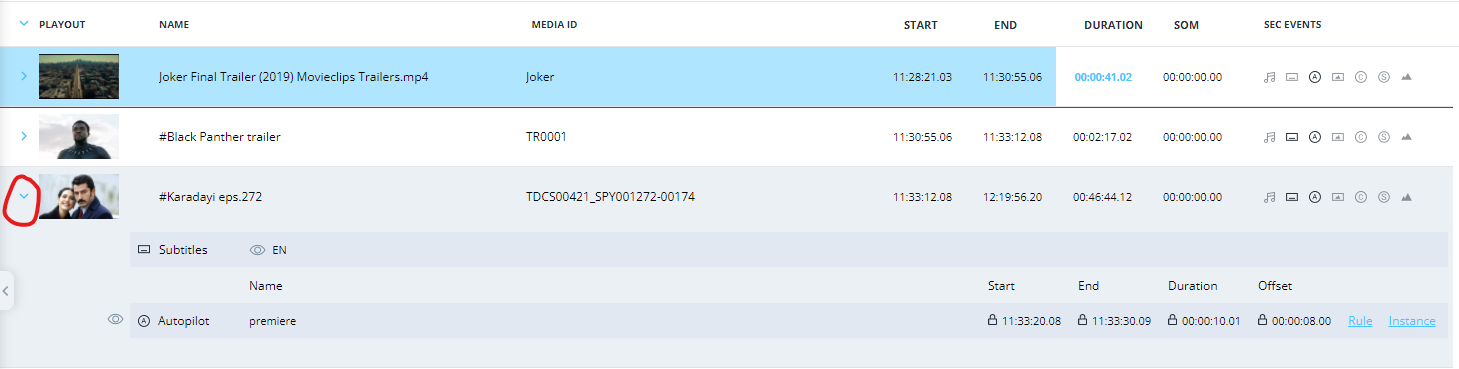
All secondary events scheduled on each item can be viewed by clicking the blue arrow icon located on the right of each item
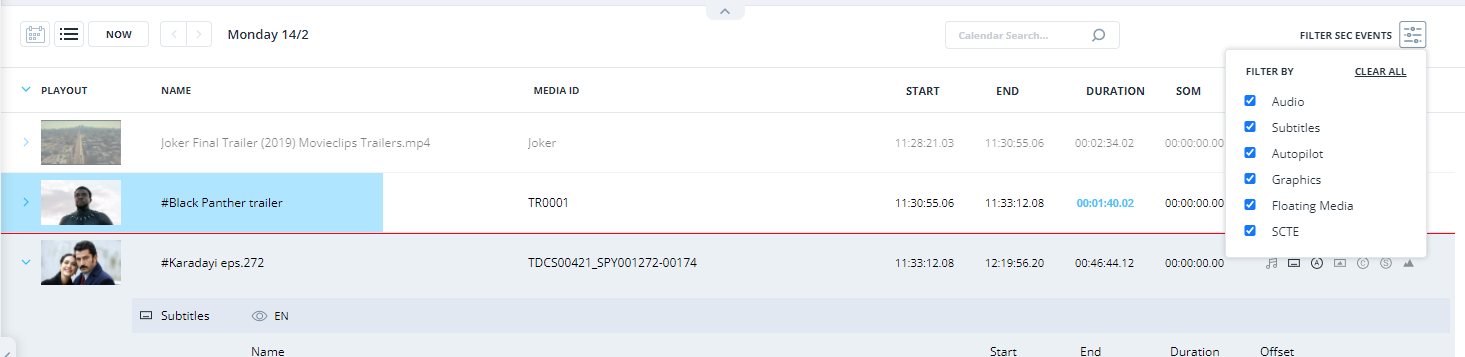
you can also filter certain secondary events by clicking the "Filter Sec Events' icon located on the top left of the scheduler
Scheduling items by Drag-and-Drop
To add content from the MAM to the scheduler, drag and drop the relevant items to the right place to schedule.
