
Uploading your subtitle and extra audio tracks
To Add Subtitles files to a specific Video file, hover over the desired Video file (in the MAM) with the mouse and click the  icon, then go to the Files tab and click the
  icon next Subtitles. Now, choose the correct Subtitle file from your computer and click Open.
Once the Subtitle file has finished uploading, it will be visible next to Subtitles.

The viewable Subtitle file should automatically state the language of the subtitles (i.e., EN for English subtitles, HE for Hebrew subtitles, etc.).
If the file states a different language than the one, it contains, clicks on the  icon and assign the correct subtitle language.
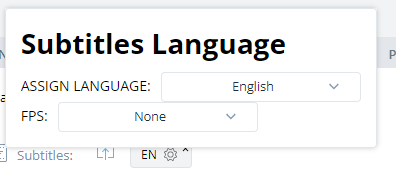
To delete a Subtitle file, click the small x icon on the upper-right side of the Subtitle file.

Adding an Audio Dubbing file to a Video file happens similarly to adding a Subtitle file to a Video file.
To add audio files to a specific Video file, hover over the desired Video file (in the MAM) with the mouse, click the icon, go to the Files tab, and click the icon next to Audio. Now, choose the correct Audio File from your computer and click Open.
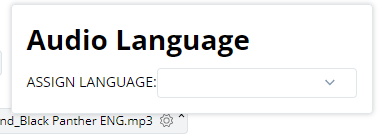
Once the Audio file finishes uploading, it will be visible next to the Audio.

Click the icon and assign the correct dubbing language.
*Please note: it is highly recommended to preview the synchronization of attached Audio / Subtitle files to the Video file they’re attached to before the scheduled broadcast.